

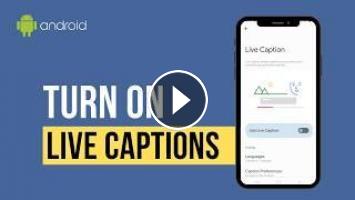
Activating the Live Caption feature on your Samsung Android device allows you to instantly generate real-time text transcriptions for any audio playing through your smartphone speaker.
Stop fighting your phone and start winning. I curate the best Android tips so you don't have to. Get the daily Not Just Lessons newsletter here: https://notjustlessons.beehiiv.com/subscribe
This step-by-step tutorial guides you through the entire configuration process for the native Android transcription utility built directly into your One UI system software. You will learn the fastest method to toggle the subtitling interface using physical hardware controls as well as how to locate deep accessibility menus to modify user preferences. The breakdown covers important hardware performance considerations, text positioning techniques, and specialized filters designed to improve readability. By adjusting these integrated mobile tools, you can ensure that media files, voice recordings, and standard telecommunication streams remain fully accessible without relying on external third-party software applications.
What is covered in this video:
The tutorial starts with instructions on pressing the physical hardware buttons on the side of your handset to reveal the interface controls.
You will discover how to tap the three vertical dots on the active audio panel to expand your screen options.
The guide demonstrates selecting the square text icon to instantly light up the interface and initiate the feature.
You will learn how to press, hold, and drag the dark overlay box to place the text in the optimal viewing position.
The overview details how the automated utility captures spoken words from active videos, digital podcasts, audio voice notes, and standard incoming calls.
The breakdown explains the technical trade-offs regarding local device processing and its direct impact on your overall battery lifespan.
You will see how to swipe down the notification shade and select the gear icon to open the main system settings application.
The walkthrough assists you in navigating to the accessibility menu and selecting the dedicated hearing enhancements category.
The instructions show how to open the specific advanced control window to customize your complete subtitle environment.
You will learn to configure the internal toggle switches to effectively filter out offensive profanity from the screen display.
The settings display allows you to choose whether text overlays appear during active voice calls over the cellular network.
The lesson covers enabling advanced sound labels to identify background noises such as crowd laughter, audience applause, or crying.
The conclusion helps you save your structural preferences and back out of the mobile operating system interface safely.
Mentioned in this video: Samsung Android device, physical volume up button, physical volume down button, standard volume slider, Live Caption toggle, accessibility option, hearing enhancements, sound labels, One UI system software.
-------------------------------------------------------------------
#SamsungGalaxy, #LiveCaption, #AndroidTips, #SamsungSettings, #Accessibility
Stop fighting your phone and start winning. I curate the best Android tips so you don't have to. Get the daily Not Just Lessons newsletter here: https://notjustlessons.beehiiv.com/subscribe
This step-by-step tutorial guides you through the entire configuration process for the native Android transcription utility built directly into your One UI system software. You will learn the fastest method to toggle the subtitling interface using physical hardware controls as well as how to locate deep accessibility menus to modify user preferences. The breakdown covers important hardware performance considerations, text positioning techniques, and specialized filters designed to improve readability. By adjusting these integrated mobile tools, you can ensure that media files, voice recordings, and standard telecommunication streams remain fully accessible without relying on external third-party software applications.
What is covered in this video:
The tutorial starts with instructions on pressing the physical hardware buttons on the side of your handset to reveal the interface controls.
You will discover how to tap the three vertical dots on the active audio panel to expand your screen options.
The guide demonstrates selecting the square text icon to instantly light up the interface and initiate the feature.
You will learn how to press, hold, and drag the dark overlay box to place the text in the optimal viewing position.
The overview details how the automated utility captures spoken words from active videos, digital podcasts, audio voice notes, and standard incoming calls.
The breakdown explains the technical trade-offs regarding local device processing and its direct impact on your overall battery lifespan.
You will see how to swipe down the notification shade and select the gear icon to open the main system settings application.
The walkthrough assists you in navigating to the accessibility menu and selecting the dedicated hearing enhancements category.
The instructions show how to open the specific advanced control window to customize your complete subtitle environment.
You will learn to configure the internal toggle switches to effectively filter out offensive profanity from the screen display.
The settings display allows you to choose whether text overlays appear during active voice calls over the cellular network.
The lesson covers enabling advanced sound labels to identify background noises such as crowd laughter, audience applause, or crying.
The conclusion helps you save your structural preferences and back out of the mobile operating system interface safely.
Mentioned in this video: Samsung Android device, physical volume up button, physical volume down button, standard volume slider, Live Caption toggle, accessibility option, hearing enhancements, sound labels, One UI system software.
-------------------------------------------------------------------
#SamsungGalaxy, #LiveCaption, #AndroidTips, #SamsungSettings, #Accessibility
- Категория
- Партнёрские программы

Комментариев нет.
Следующее
Auto
-
02:13

Samsung HE Washer Dryer Combo Features Review Review Unboxing Samsung Demo Test
-
01:04
1980s Cordless Phones Had This Deadly Flaw #truecrime #podcast
-
00:34
Feds Tracked Lil Durk’s Alleged Burner Phones Through His WI-FI?!
-
00:06
I help female online experts and coaches to automate their sales, ditch sales calls, and stop
-
09:47
How to Find Remote Order Processing Jobs That Use Email Instead of Phone Calls
-
12:12
4 Quiet Remote Jobs That Don't Require Phone Calls | Part-Time Data Entry Opportunities
-
00:42
Как легко создать ИИ-аватар⤵️Приложение: Captions
-
00:08
I help female online experts and coaches to automate their sales, ditch sales calls, and stop
-
02:51
Side Phone 1 — The Modular Android "Dumb Phone"
-
01:14
Love The Sensor Dry - Samsung Dryer Review Review Unboxing Samsung Demo Test
-
05:33

ЗАРАБОТОК В ИНТЕРНЕТЕ | КРУТАЯ СХЕМА | FUNPAY
-
08:12

Пассивный Заработок 1000Р в День в Интернете на Телефоне Без Вложений
-
06:43

Как ЗАРАБОТАТЬ ШКОЛЬНИКУ в ИНТЕРНЕТЕ? Самые Легкие Способы Заработка
-
07:05

ЗАРАБОТОК В ИНТЕРНЕТЕ 2023 | Реальный заработок в интернете с вложением | Как заработать в интернете
-
05:49

ЗАРАБОТОК В ИНТЕРНЕТЕ 2023 | Реальный Заработок В Интернете С Вложением. Как Заработать В Интернете?
-
04:28

Схема заработка 2023 ! Зарабатываем в интернете онлайн сидя дома ! Заработок денег ! Деньги легко !
-
05:33

ЗАРАБОТОК В ИНТЕРНЕТЕ | КРУТАЯ СХЕМА | FUNPAY
-
06:43

Как ЗАРАБОТАТЬ ШКОЛЬНИКУ в ИНТЕРНЕТЕ? Самые Легкие Способы Заработка
-
14:53

Показываю Как Зарабатывать Деньги - Заработок В Интернете 2023 Рабочая Схема Для Заработка
-
14:12

Большой Заработок В Интернете С Выводом Рабочая Схема Заработка
 Загрузка...